Data subset / resample
The Data subset / resample node creates a new dataset by selecting a subset of variables and rows from an existing dataset, with optional random resampling. It is a safer, reproducible alternative to using copy/paste and delete operations in the data table.
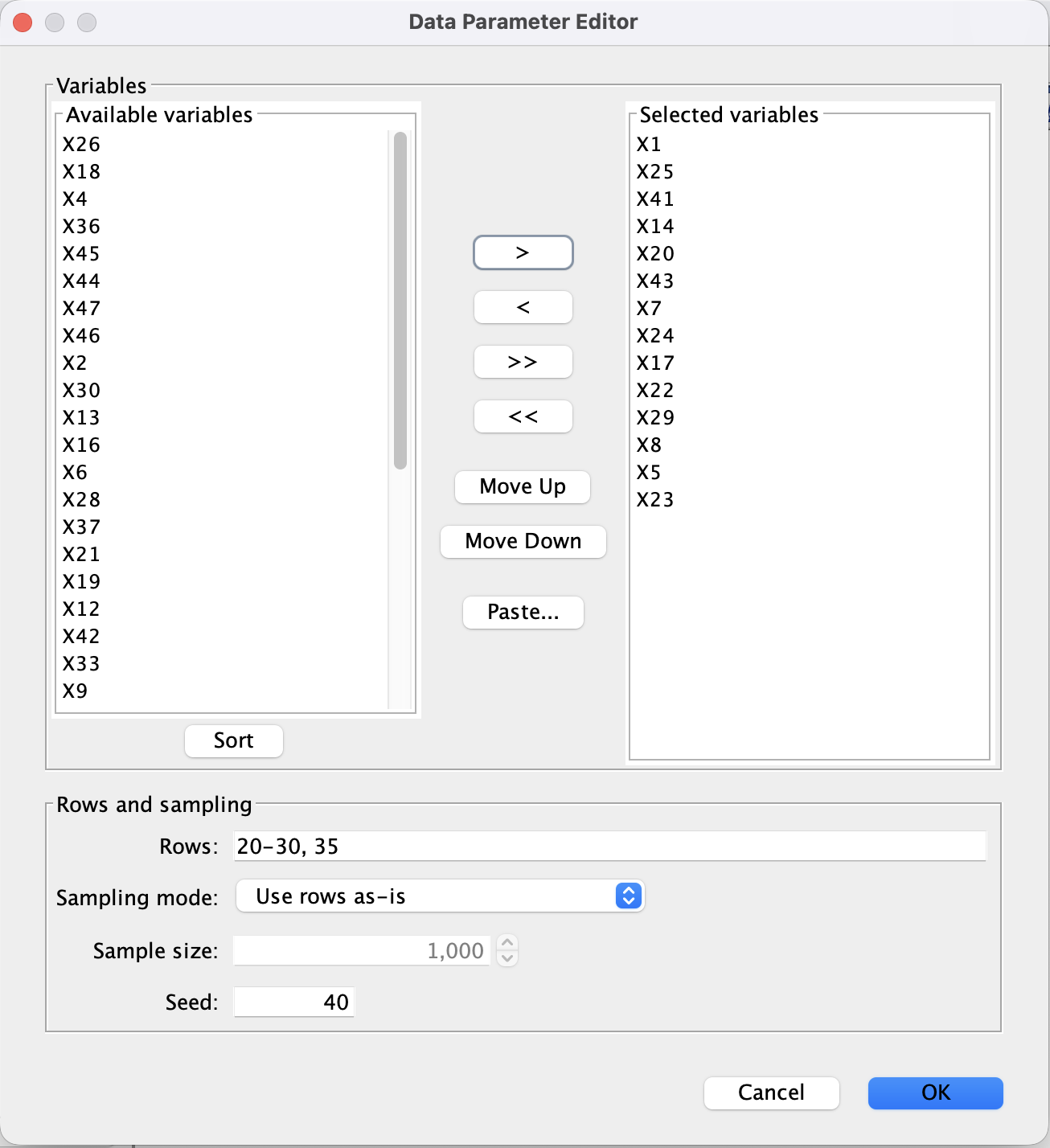
Data subset / resample editor.
Inputs and outputs
Input: One rectangular
Datanode (continuous, discrete, or mixed).Output: A new
Datanode whose:Columns are the selected variables, in the order shown in the Selected variables list.
Rows are the rows matching the row-specification and sampling options.
The original dataset is not modified.
Variable selection
The top half of the editor controls which variables (columns) are included in the output dataset and in what order.
Available vs. Selected variables
Available variables (left):
All variables from the input dataset that are not currently selected.Selected variables (right):
Variables that will appear in the output dataset, in the order shown.
Use the buttons between the lists to move variables:
>– Move the highlighted variables from Available to Selected.<– Move the highlighted variables from Selected back to Available.>>– Move all variables from Available to Selected.<<– Move all variables from Selected back to Available.
If no variables are in the Selected list when you click OK, the node defaults to “all variables in original order.”
Ordering selected variables
The Move Up and Move Down buttons change the order of variables in the Selected variables list:
Move Up – Move the highlighted variable(s) one position up.
Move Down – Move the highlighted variable(s) one position down.
The final column order in the output dataset exactly matches the order of the Selected variables list.
Sorting available variables
The Sort button underneath Available variables alphabetizes the left-hand list (A–Z) by variable name. This only affects the display order of the Available list; it does not change the order of the Selected variables or the columns in the output dataset.
You can freely sort, select, and move variables without affecting the original dataset.
Paste… (select variables by name)
The Paste… button lets you select variables by pasting their names from an external source (for example, a text file or script):
Click Paste….
In the popup text area, paste variable names separated by commas, tabs, spaces, or newlines (for example:
X1, X2, X3orX1 X2 X3or one name per line).Click OK.
Behavior:
Any pasted names that exist in the dataset are moved into the Selected variables list, in the pasted order.
Variables that were already selected are repositioned to match the pasted order.
Variables not mentioned in the pasted list are left unchanged.
If some pasted names are not present in the dataset, a small popup shows the list of missing names, which you can dismiss.
This is especially useful when you already have a curated list of variables in a paper, script, or external file.
Rows and sampling
The bottom half of the editor controls which rows are included, and how they are sampled.
Row specification
The Rows field accepts a comma-separated list of 1-based ranges:
A single row:
10A range of rows:
20-30A combination:
1-100, 150, 200-250
Semantics:
Indices are 1-based (row
1is the first row in the dataset).Ranges are inclusive (e.g.,
20-30means rows 20 through 30).Whitespace around commas and dashes is ignored.
If the field is left blank, all rows of the dataset are used as the base row set.
Invalid specifications (for example, 0-10, 30-20, or non-numeric text) will
produce an error dialog and fall back to using all rows.
Sampling mode
The Sampling mode selector determines how rows are used:
Use rows as-is
Uses exactly the rows specified by the Rows field, in their original order.
Ignores the Sample size field.
Shuffle rows
Uses the same set of rows, but in random order.
The underlying row set is still determined by the Rows field.
Subsample (without replacement)
Randomly selects a subset of the specified rows, without replacement.
The Sample size must be between
1and the number of available rows.
Bootstrap (with replacement)
Draws rows with replacement from the specified rows.
The Sample size controls the number of rows in the output dataset.
When a mode requires a sample size, the Sample size spinner becomes editable; otherwise it is greyed out and defaults to the number of selected rows.
Seed (reproducibility)
The Seed field controls the random number generator used for shuffling, subsampling, and bootstrapping:
If the field is left blank, a fresh random seed is used each time.
If you enter an integer (for example
40), the sampling becomes reproducible: running the same node again with the same seed, row spec, and sampling mode will produce the same subset.
Typical use cases
Create a clean variable subset
Select a subset of variables (possibly in a new order), leave Rows blank, choose Use rows as-is, and click OK to get a new dataset with only those columns.Extract a contiguous block of rows
Enter101-200in Rows, leave sampling as Use rows as-is, and select variables as needed.Draw a bootstrap sample of a subset
Enter a row range (or leave blank for all rows), choose Bootstrap, set the Sample size and Seed, and click OK to create a reproducible bootstrap dataset over the selected variables.
The resulting node can be used anywhere a normal Data node can be used
(e.g., as input to search, estimation, or plotting procedures).