Note Box
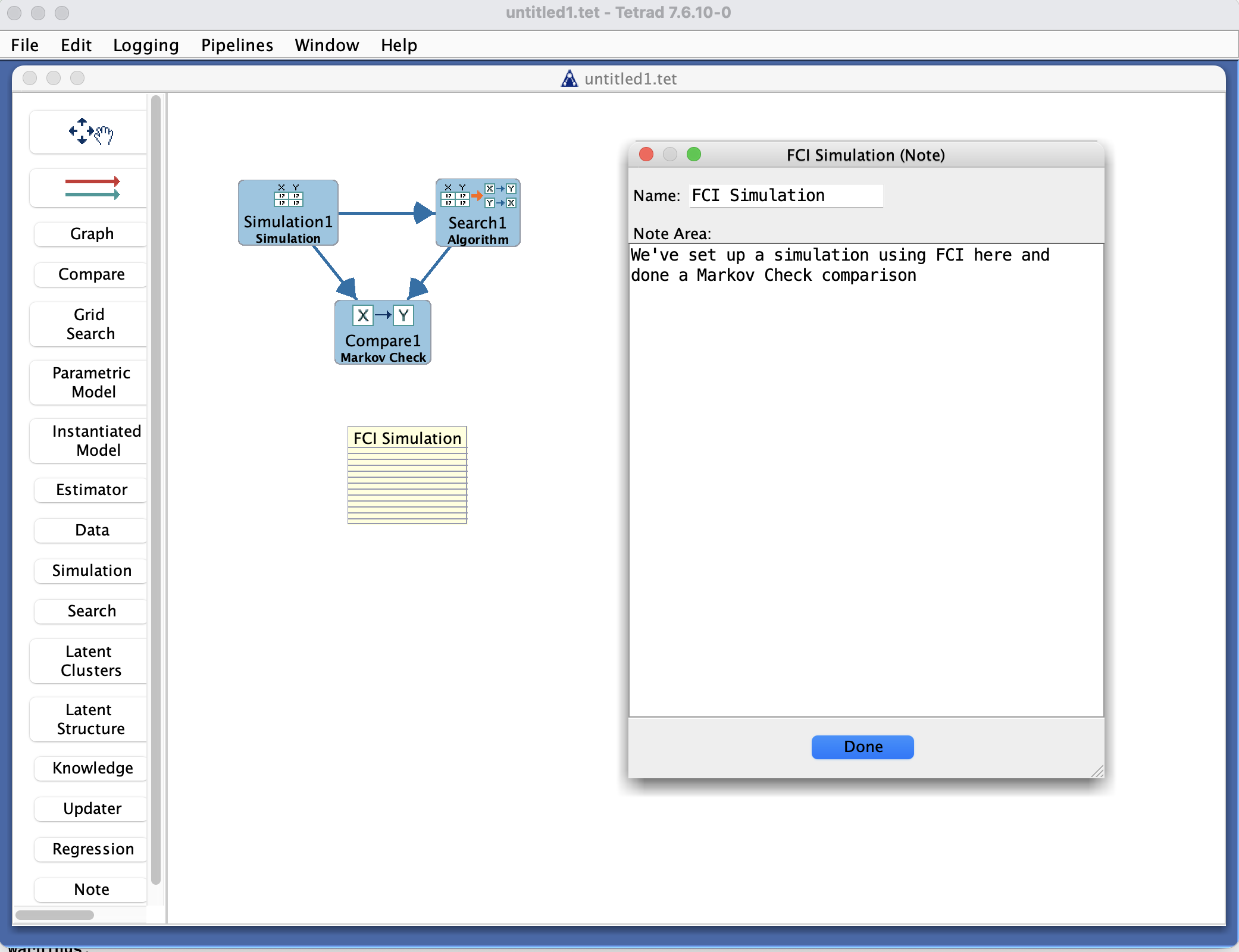
Note Box in the Tetrad interface sidebar and a note node on the workbench.
Purpose
The Note box lets you create note nodes that you can place on the workbench.
Each note has:
A title, which appears as the label of the node on the workbench.
A longer text body, which you can view and edit by double-clicking the node.
Notes are useful for visually annotating a workbench layout—for example, marking groups of nodes, recording a short reminder next to a graph, or labeling different regions of a workflow.
Typical workflow
Create a note
In the Note box, click New to create a note object.
Give the note a descriptive title; this title will appear on the note node in the workbench.
Place the note on the workbench
Drag the note from the Note box list onto the workbench, or use the available controls (depending on your version) to add it to the main view.
Position the note node wherever you like by dragging it around the workbench.
Edit the note text
Double-click the note node on the workbench to open its text editor.
Type or edit the contents of the note.
Close the editor; the text is stored with the note, but only the title remains visible on the workbench.
Reposition and organize
Move note nodes around the workbench to group them near relevant graphs, models, or other objects.
Use multiple notes to mark different regions, phases of analysis, or TODO items.
Save with the project
Notes (and their positions on the workbench) are stored in the Tetrad project file.
When you reopen the project, the notes reappear where you placed them.
Key controls
Toolbar
New – create a new note.
Rename / Delete – change the note’s title or remove the note from the project.
Note list
Shows all note objects defined in the project.
Selecting a note in the list highlights or focuses the corresponding note node on the workbench (depending on your version).
Workbench interaction
Drag a note from the list to the workbench to place its node.
Drag the note node to reposition it.
Double-click the node to edit its text.
Common patterns & tips
Use notes to label regions of the workbench:
“Data preprocessing”
“Search results for fire data”
“Candidate adjustment sets”
Keep note titles short and descriptive; the title is what remains visible on the workbench.
Use the full text (visible on double-click) for a brief explanation, comment, or reminder.