Graph Box
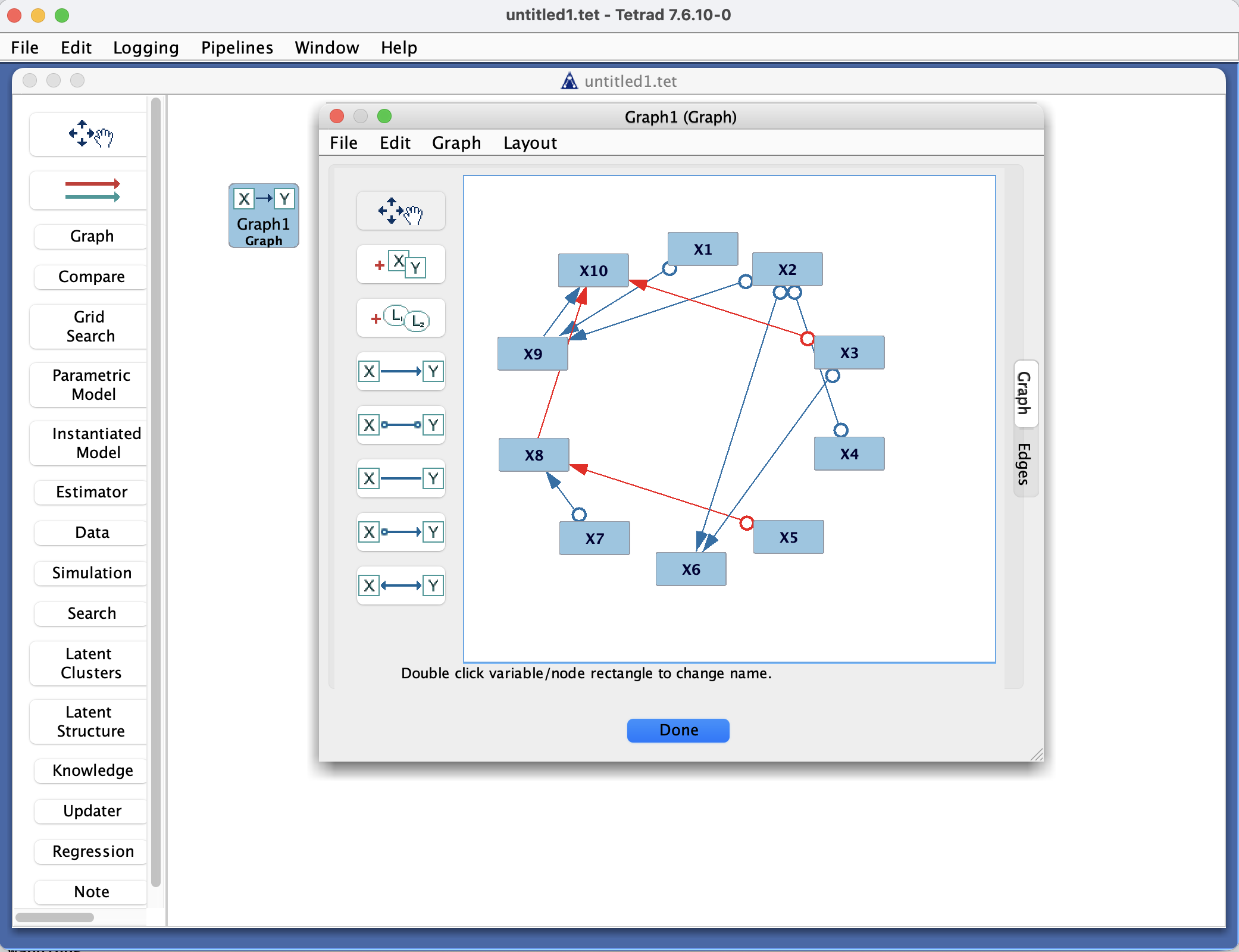
Graph Box in the Tetrad interface sidebar and main panel.
Purpose
The Graph box is where you work with graph objects in a Tetrad project. It shows a graph on the workbench, lets you create new ones, edit existing ones, and inspect their details.
In a typical workflow you will move back and forth between this box and others (for example, creating a graph from data, running a search to produce a new graph, or using a model to generate simulated data).
Typical workflow
Create or import a graph
Use the New or Load button in the toolbar of the Graph box.
Configure any required options in the dialog that appears (e.g., number of nodes, graph type).
Inspect or edit
Select a graph in the workbench to show it in the main panel.
Use the context menu (right-click) or toolbar buttons for common actions such as copy, paste, or export.
Use the graph editor in the main panel to add/remove nodes and edges, or to change orientations and graph type.
Use in other boxes
Many operations in other boxes (e.g., Search, Simulation, Estimator) take graphs as inputs. You typically draw arrows from the Graph box in question to these other boxes.
Save your project
When you save a Tetrad project, the set of graphs in this box is stored along with everything else.
Key controls
Actions
New – create a new graph (by making a new Graph box) or create a random graph using the Random Graph item in the Graph menu.
Load / Import – bring a graph in from a file or other source (e.g., .txt, .dot, .pcalg).
Save – save a selected graph to a file.
Main panel
Displays the selected graph in the graphical editor.
Allows adding/removing nodes and edges, changing edge marks (→, o→, ↔, –), and switching between graph types where supported.
Common patterns & tips
Give each graph a descriptive name, especially when running multiple searches or comparing alternative models.
To duplicate a graph, make a new Graph box and draw an arrow from the old Graph box to the new one, to keep a record of intermediate graphs before applying major modifications or orientation procedures.
If you import graphs from external tools (e.g.,
pcalg), verify that the graph type (DAG, CPDAG, PAG, etc.) matches your intended use.